
If you hide rows, columns and data on excel, the chart that’s uses this data also hides it — while this is the default behavior, you can override this by following the steps below.
Let’s reproduce the behavior first.
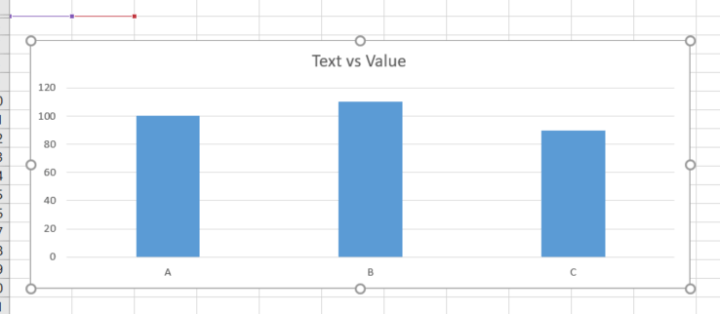
I have a simple excel chart like shown below:

Now, if I hide the data that is selected for this chart then the chart stops showing this as well:
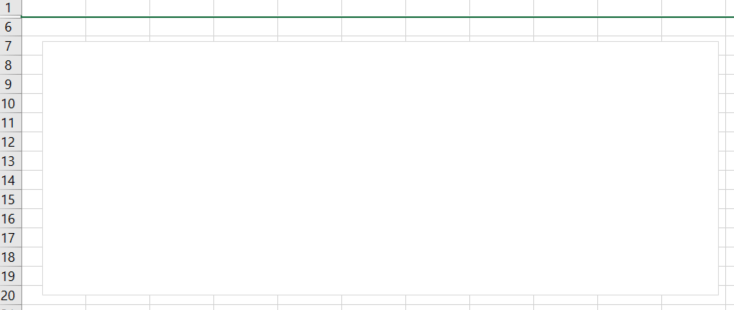
To fix this and if you want the cells (rows, columns and data) to be still hidden but still have the chart show up, then follow the steps:
Select the chart
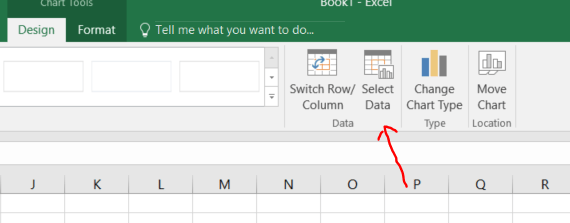
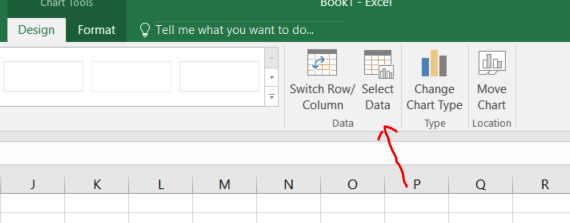
Under Chart Tools > Design > Select Data
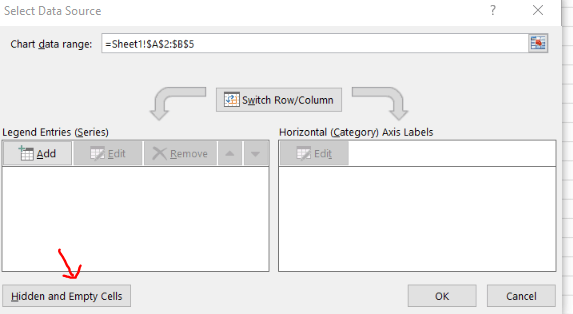
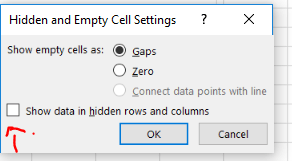
Click on Hidden and Empty Cells
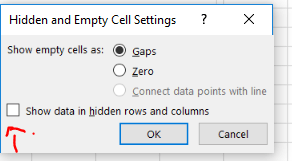
Check the Show data in hidden rows and columns check-box
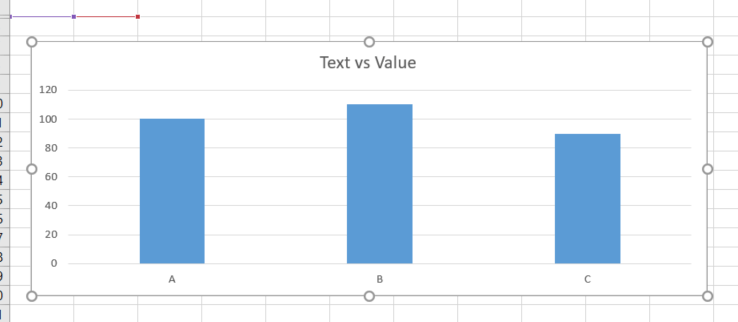
Go back to excel and you should see the data on the chart now even though the data is hidden

Hope that helps!